How to Download a Chess.com Game as a PGN
Save a finished game on desktop, iPhone, or Android. Then use a sample PGN to check that you can replay what you exported.

On the Chess.com website, open the completed game, choose Share → PGN → Download, and save the .pgn file. On Android, open the game and choose More → Export PGN. On iPhone or iPad, open the game in Analysis → Options → Share and copy the PGN if that’s the most direct way to get it into your analysis board.
A PGN is a plain-text game record. It carries the moves and result so you can play through the game again, open it in another chess tool, or archive it. If the export seems to have failed, try the small sample below first. Once that loads, you can tell whether the problem is in your Chess.com export or how you opened it.
Download a completed game on the Chess.com website
- Find the finished game. Use Play → Game History, or open a link to the completed game. Check the players, result, and date before you export, especially when you’ve played the same opponent several times.
- Open the sharing controls. Choose the Share icon near the bottom of the game’s Analysis panel. On a small screen, you may need to scroll to the controls beneath the move list.
- Choose PGN, then Download. If you’re reviewing time management and the clock option is available, include timestamps before downloading. For a file you can read quickly, save the moves without analysis or extra annotation first.
- Open the downloaded file once. A chess analysis board can replay it. A plain-text editor can show you the headers and moves. Look for the game result and a move you remember before filing it away.
We checked this route on a public completed Chess.com game and compared the result and final move with the original record. A resignation still produces a completed game. The PGN ends at the last move actually played and carries the result, even when the final board has legal moves left. Chess.com’s export instructions · Chess.com Game History
Should you include clocks, comments, or engine analysis?
Save a clean copy first if you mainly want to replay the actual moves. Include clocks when your question is about the time you spent. Select annotations when your notes, highlights, or arrows are part of the lesson. Chess.com also documents an option to include computer analysis after analysis has run. Its export dialog offers annotations and computer analysis as separate choices, so make a second export if you want both versions. Export options for analysis and annotations
For example, keep rapid-2026-11-27.pgn for replay and rapid-2026-11-27-notes.pgn for your annotated copy. When you share a game for feedback, open the annotated file first and check that you’re comfortable sharing the comments in it.
Get a Chess.com PGN on Android or iPhone
Android
- Open a completed game. If you need to find it again, open Game Archive from the bottom of the app’s home screen.
- Choose More in the lower-left part of the game view and select Export PGN.
- Choose Copy in the share window and paste the text into your analysis tool, or choose a destination that can save the export. If all you have is a web address, return to Export PGN. The separate Share Game command sends the link.
iPhone and iPad
- From the completed game, use the magnifying-glass control to open Analysis.
- Use Options in the lower menu, then Share.
- Copy the PGN text or send it to an app that can save it. When copying, take the header lines and the full move list, all the way to the final result.
The native menu paths come from Chess.com’s current help. Available share destinations depend on the phone. If you only need to paste a game into another board, the copied text is enough. If you want a file, save the text with a .pgn extension using a plain-text editor. Keep the blank line between the headers and the moves. Official Android and iOS export paths
If you’re moving a game from a phone to a computer, open a plain-text note on the phone, paste the export, and check the very first and last lines. Send the text or the plain file to a destination you can open on the computer. Copy it from there into the board. A rich-text attachment or a message preview can show the moves while dropping the first few headers. Open the complete original text before pasting.
Download several games or a full month
Select games in Game History
On the website, narrow the results first by date, time control, opponent, or game type. Select the boxes beside the games you want, then use the Download control above the list. The select-all checkbox applies to the games shown, so check which page you are on before exporting. A few deliberate picks are easier to review than a long file you still need to split. Game History filters and bulk export
Get one public month from the Chess.com API
For an archive copy, open this address with your public username, a four-digit year, and a two-digit month. For February, use 02.
https://api.chess.com/pub/player/USERNAME/games/YYYY/MM/pgn
If you don’t know which months are available, open the archives list. It gives you the available month URLs. Choose a month and add /pgn to the end of that month’s URL to get the text game records.
https://api.chess.com/pub/player/USERNAME/games/archives
We checked the monthly endpoint on an archived month and parsed the first game in the resulting file. Use this route for public records. If you played a private Bot or Coach game, find it in your own signed-in history if it was saved there. For a backup across several years, save one file per available month and include the year and month in each filename. Chess.com’s published-data documentation · Chess.com’s archive and saved bot-game guidance
A monthly PGN is a stack of game records. One set of headers and its following move list belongs to one game. To find one without specialized software, search the text for the opponent’s name, then confirm the date and result in that same header block. Copy from the first tag in that game to its own final result. Leave a blank line after the headers so the next tool can see where the moves begin.
Download and inspect a clean sample PGN
Our sample is an illustrative completed standard game, with 65 half-moves and a 1–0 result. The two checkpoints below let you verify that a board loaded the whole file. You can also open the full text on this page to copy it on a phone.
Show the complete sample PGN
[Event "Tera Chess illustrative game"]
[Site "https://terachess.co/blog/turn-chess-com-games-into-puzzles/"]
[Date "????.??.??"]
[Round "-"]
[White "Sample White"]
[Black "Sample Black"]
[Result "1-0"]

1. e4 e5 2. Nf3 Nc6 3. Bc4 Bc5 4. d3 Nf6 5. O-O d6 6. c3 O-O 7. b4 Nxb4 8. a3
d5 9. exd5 Nxd3 10. Be3 Bd6 11. Nbd2 Nb2 12. Qc2 c6 13. Be2 e4 14. Nxe4 Ng4 15.
Nxd6 cxd5 16. Nxc8 g6 17. Qxb2 Qc7 18. Ne7+ Kh8 19. Nxd5 Qb8 20. c4+ Ne5 21.
Rfc1 a6 22. g3 a5 23. Nxe5 Qd8 24. Nc6+ f6 25. Nxd8 Rc8 26. Ne6 Rf7 27. Nxf6 h6
28. Rd1 Ra8 29. Ng4+ Kh7 30. Rd7 Rxd7 31. Nf6+ Kh8 32. Nxd7+ Kg8 33. Qg7# 1-0
The headers start in square brackets. White and Black name the players, and Result gives the outcome. The moves follow a blank line and end with the same result. Usual results are 1-0, 0-1, and 1/2-1/2. A final * indicates a game in progress or a missing result. Export the finished game again if the result is missing.
PGN records a game or line. FEN stores one position, including whose turn it is. If you only need to recreate the board before move 24, a FEN works. If you want to see what led to it or replay a later move, use the PGN. A PGN for a nonstandard starting position can have SetUp and FEN headers. Keep them with the moves when they’re part of the export. Chess.com’s PGN and FEN guide · PGN specification
Here’s a quick way to read a line in the sample. In 23. Nxe5 Qd8 24. Nc6+, Nxe5 is White’s capture on move 23, Qd8 is Black’s reply, and the plus sign after Nc6 means check. The number sign in Qg7# marks checkmate. If a downloaded line shows a different move at the same spot, verify which game you exported before treating it as an import error.
Open the PGN and check that the replay matches
Open the sample file in a plain-text editor and copy everything. In Tera Chess, sign in and go to Analysis board → Position & PGN. Paste the text and select Load PGN. Use the move history to select 23…Qd8, and then jump to 33.Qg7#.
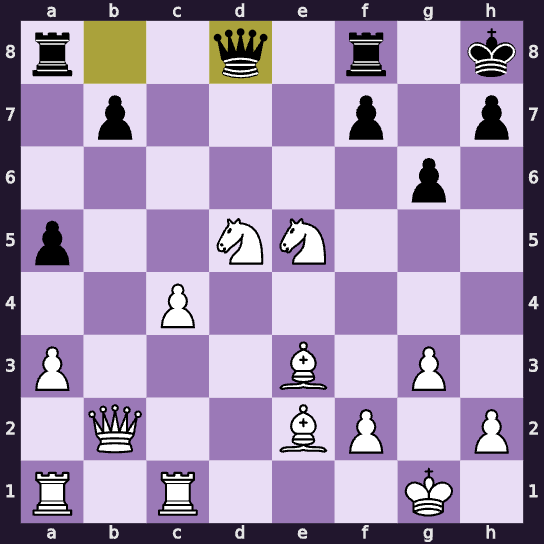
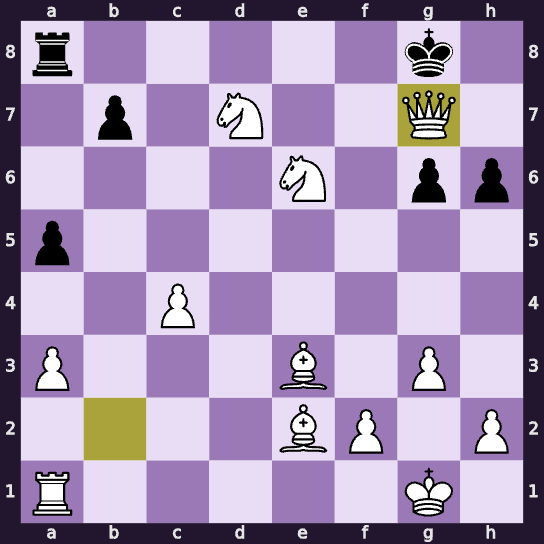
In your own game, choose a middle move you remember and then check the final board and result. If the sample works but your game doesn’t, compare the saved start, move list, and result before changing the file. Tera Chess’s Analysis board loads one completed standard game at a time. For a multi-game month, choose one complete game record for manual analysis, or use the completed Chess.com archive import if you want to build a practice library from a public username.
You can also paste PGN into Chess.com’s Load From FEN/PGN(s) tool. Lichess offers a page for uploading or pasting a game when you want a shareable replay. Its import page says imported games are public and points to Study for private use. Pick the route that matches whether you want a replay link, a local archive, or positions for later practice. Chess.com Analysis · Lichess game import · Compare three post-game review workflows
Fix the most common PGN export problems
- Only a link
- Return to the Share dialog and open the PGN tab, or choose Export PGN on Android. A game URL opens a webpage. PGN text starts with game details or move notation.
- Wrong extension
- Open it in a text editor. If it already contains the headers and moves, save as plain text with the filename ending in
.pgn. Check whether the editor added.txtafter it. If you saved a web page, use the PGN export again. - Missing moves
- Copy from the first header to the last result. If you exported a review line, go back to the completed game and export its full record from there.
- Two games in one
- Look for the next game’s header block. Copy one game, including its own result, and paste that into a single-game analysis board. Use a chess database to browse an entire monthly file.
- Error after an edit
- Try the untouched download first. Editors can replace plain quotes with curly ones. Keep ASCII punctuation in the headers and preserve any setup tags. If the export fails only with comments or analysis, test a clean export to isolate the difference.
- Game missing
- Check the date and game-type filters on the website. For a Bot or Coach game, look in the corresponding tab while signed in. A public monthly link covers games included in that public archive. Follow the missing-game checklist if your completed game still hasn’t appeared after import.
When an import fails, try the sample in the same tool with the same steps. If both fail, check where you pasted the text and whether you also need to select Load. If only your file fails, export one clean game again. A fresh download usually takes less time than repairing a partly copied move list.
Do you need a paid Chess.com membership to get a PGN?
We exported the PGN of a publicly accessible, completed game from the website without signing in. Sign in if you need to open your own Game History or get a private saved game. An export of the moves and an export carrying computer analysis have different prerequisites. For a first check, download the basic PGN and open it before adding analysis extras.
Why can I see the game but miss some clocks or comments after importing?
Different tools read different extras. Check the original text for clocks, comments, or variations before concluding the export dropped them. If the text contains them and the new board shows only the moves, keep the original file so you can revisit those notes in a compatible viewer. If the text lacks them, return to the source export options and save a second copy.