Why Your Chess.com Games Are Missing After Import
Track one completed game from Chess.com to your library. Fix a filter, find an older game, or review a game that is still queued.

If a completed Chess.com game is missing after import, start with its game link. Check for that exact game in three places. Start with Chess.com Game History, move to the public monthly archive, then check the Tera Chess Game library. If the library shows Queued, the game is already imported. You can replay it while you wait for engine analysis.
These checks are for games that have ended. Keep the final result, the opponent, and the game ID handy. They let you confirm you’ve found the right game even if you played the same opponent several times.
- Missing in Game History
- Check the Chess.com account, date and game-type filters. See whether the game ended, was aborted or was saved under Bot or Coach.
- Missing in the public archive
- Check the adjacent month if it ended near a month boundary. If an eligible game still isn’t listed, use the single-game PGN for now and check the archive again later.
- Archived, missing in Tera Chess
- Confirm it’s completed standard chess. Select All time controls, then try Sync games or Import older games according to its date and where it falls in your history.
- Visible with Queued
- Open Review to replay it. Select Analyze this game when you want Stockfish’s alternatives for that particular game.
1. Find the completed game on Chess.com first
On the Chess.com website, open Play → Game History. Check the username at the top of the site. On a shared computer or a device where you play under two usernames, it’s easy to look through the right month in the wrong account. Set the game-type filter to All and remove any date, opponent, or time-control filter you set for an earlier search. You can narrow the results again once you have the exact date. Chess.com’s Game History guide
Compare the opponent, game date and result. Two blitz games against the same opponent can finish a few minutes apart with different results. Open the one you want, copy the game URL, and keep its final number. That number is a better search key for the archive than the opponent’s name. A link ending in /game/live/146390602085 identifies one exact game.
If the mobile app and website show different lists, check the website. Chess.com documents that the mobile archive can lag the browser view. If you played against a computer or the Coach, check the Bot or Coach tab while signed in. Chess.com keeps saved games in those tabs private and describes when short games need to be saved manually. An aborted game is removed from Game History. Any Daily game you’re still playing needs to finish before a completed-game import can find it. Chess.com’s saved games and mobile archive notes · Chess.com’s aborted games guide
If a really old game is past what the Game History page will show, try a narrower date filter or use the public monthly archive. Save the game URL from whichever view lets you open it. You’ll use it in the next check and can also use it to export the individual PGN.
2. Look up the game in the public monthly archive
The public archive is a read-only feed that services such as Tera Chess can query with your public username. It’s separate from the Game History view you use after signing in. You can check which months it lists and whether the precise game appears in one of them without sharing a password. Chess.com’s Published Data API guide
- Open
https://in a browser. Replaceapi.chess.com/ pub/ player/ USERNAME/ games/ archives USERNAMEwith the Chess.com username on the game you’re trying to find. - Open the listed link for the month the game ended. It ends in
/games/YYYY/MM. If the game finished around midnight at the end of a month, check the neighboring month too. For a Daily game, the end month can be much later than the start month. - Use your browser’s Find command to search for the game ID. Confirm that the match is the game’s
urlrather than a reference in a comment. Check that this record has"rules":"chess", a finishing timestamp underend_time, and apgnwith the move list and a final result.
Try the check with a real blitz game
Open Benjamin Bok’s July 2025 archive and search for 146390602085. The game URL matches his completed game against vugarrasulov. The record has rules set to chess, time_class set to blitz, and a finished PGN with result 0-1. White resigned after 45…Bxa8. This is what a completed standard game looks like in the public source. You can compare those fields with the record you’re troubleshooting. Original Chess.com game · Replay and review the position
{
  "url": "https://www.chess.com/game/live/146390602085",
  "rules": "chess",
  "time_class": "blitz",
  "end_time": 1752077136
}
Those four fields identify the game, format, and finish time. The full public record also contains the PGN. If you find your ID in a record where your username belongs to neither player, check that you copied the game link you intended. You can cross-check the participants in the white and black fields.
The finished game is in Game History but missing from the monthly response
Double-check the username and finish month. Then give the public archive time to refresh. Chess.com describes its public responses as cached and says the endpoints refresh at most once every 12 hours. The cache can make a finished game appear in Game History first, and the actual delay for one game can vary. If the archive returns an error or a rate limit, retry later when the feed is available. You can replay the exported PGN now and sync when you can find the game ID in the public response.
The monthly response has the game, but the rules or result look different
Tera Chess imports completed standard games. A Chess960 record or other variant can have a result and its own move list and still be outside the standard import. Standard Daily games can qualify once they have ended. A PGN with * as its result is unfinished or has a missing result. If Chess.com shows the game is over and the public response still shows *, check the eventual archive record or export a fresh individual PGN from the finished game.
3. Find the game in your Tera Chess library
Open your Tera Chess account and confirm the connected Chess.com username. In Game library, choose All time controls and look for the opponent and finish date. A blitz game vanishes from the list when Rapid is selected, even when the record is already there. If the library is very large, try the game’s specific time control after the initial check. The current view can show up to 1,000 of the newest matching games, so a narrower view can bring an older game into the list.
Use Sync games for a recent game
For a recent standard game you can now see in the public archive, select Sync games. Let the job finish, then look up the opponent and date. If the account hasn’t been connected yet, use your public Chess.com username and select Import completed games. The recent import currently checks up to 60 eligible records from the three newest listed archive months, starting with newer records. Some of those records can already be in your library. The number checked is a count of records processed, which can be higher than the number of new rows. Follow the first-import walkthrough
Use Import older games to go farther back
In Game library, select Import older games for games beyond the recent import. Calendar month alone won’t always tell you which button you need. If you played more than 60 games in the newest month, some earlier games in that same month can fall outside the recent batch. The older import works back through the archives in batches and resumes where it left off. Recheck the date and time-control filter when each job finishes. Older archives checked means Tera Chess has reached the end of that archive scan.
A simple way to choose an action is to compare your missing game with the oldest imported game you can see in the same time control. If the game is from last night and has just appeared in the feed, try the recent sync. If it’s from months ago, use the historical import. If both dates fall in a busy week, remember the 60-record cutoff and look at how many newer games you played.
The connected Chess.com username belongs to a different account
Compare the player names in the archive record with the username displayed in Tera Chess. If you’ve played under a second Chess.com username, its games are listed in a different archive. A Tera Chess training library is tied to the username it was built from. If you connected the wrong profile, include the username currently shown and the one you intended to connect when contacting Tera Chess. Tera Chess contact information You can still work through a completed game from your other username by loading its PGN into the Analysis board.
4. Open a queued game to replay it or run analysis
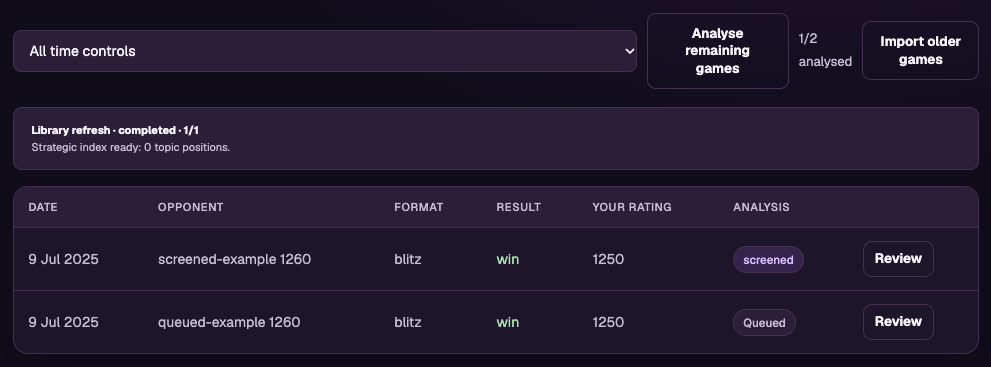
Queued in the Analysis column means Tera Chess has saved the completed game and its moves. Select Review and step through the game. You can open the same game on the full board with Open in analysis. If you’re looking for a move you remember, find it on the board first. The move list is already available while the review panel says Awaiting analysis.
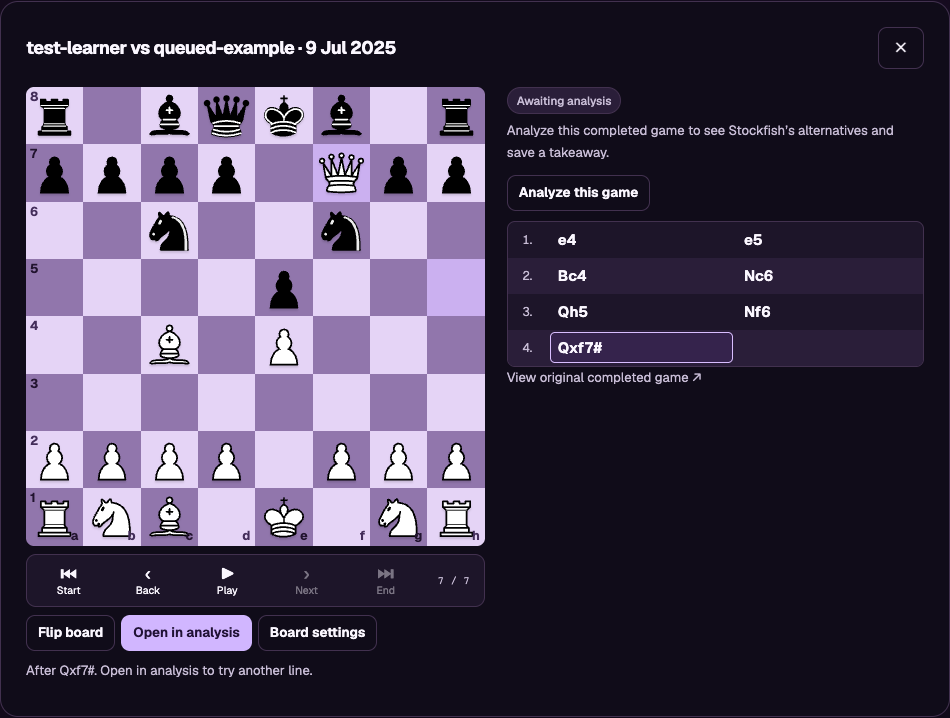
We tested this with two completed blitz games in a test account. Selecting Rapid hid both rows. Returning to All time controls brought them back. In Review we could jump to the last move of the test game, 4.Qxf7#, while the panel still said Awaiting analysis. The same row showed screened after we ran its individual analysis.
To prioritize just that game, use Analyze this game in the review. If another library job is running, wait for it to finish before starting a new one. For a backlog, Analyse remaining games currently processes up to 16 games per batch and prioritizes recent rapid games. Use the single-game action if you want Stockfish to look at last night’s blitz ending first. Once analysis completes, the row can show screened or deep. Tera Chess selects practice positions from analyzed games when it finds suitable ones. A game with engine feedback can still yield zero puzzles.
Try a concrete replay task while the job runs. Locate the position immediately before the move you’re curious about. Write down what you expected your opponent to play, then step forward once and compare. If you’re studying a time loss, you can inspect the last board right away and use the engine later to compare lines. A worked post-game review · See how a completed game becomes a playable puzzle
5. Replay one game while the archive catches up
Open the completed game on Chess.com, download or copy its PGN, and bring it to the board you want to use. In Tera Chess, open Analysis board → Position & PGN, paste one completed standard game and choose Load PGN. The moves will be available for replay in Analysis. A manually loaded PGN doesn’t create a Game library row or enter the automatic puzzle workflow. Keep your PGN and game link so you can match it when the archive import catches up. How to download a game PGN
If your export won’t load, try the complete sample PGN from our puzzle guide. It starts from the normal opening position and ends at 33.Qg7#. If the sample works, compare your export’s result header, move list and final result. Make sure you copied a single complete game and, if it uses a custom start, retained the starting-position headers. If neither file works, check that you pasted the PGN text into the Analysis board and pressed Load PGN.
- Chess.com Analysis
- Load the individual PGN for a quick replay of a game you already have. This is useful when you’re already on Chess.com with the game open. Chess.com’s Analysis board instructions
- Lichess game import
- Paste or upload one PGN for a shareable replay. Lichess says games on its import page are public and directs players to Study for private use. Lichess’s import page and privacy note
- Tera Chess archive import
- Use this when you want to collect eligible games in a training library and find practice positions across them. Use the Analysis board when you already have one PGN and want to work on it right now.
Save the checks for one game
Before retrying or reporting an issue, fill in the checklist for one missing game. Record the finish date and time zone, exact game link, archive month checked, and whether the public record was present. If you see a row, record its analysis label. If an import or analysis job ends with an error, copy that status and the name of the action you used. For a queued game, start by opening Review so you can report whether the moves are there.
Download the missing-game checklist
If the public source is missing the record, Chess.com Game History and its public data feed are the places to check. If a finished standard game is in the public archive and remains missing after the appropriate Tera Chess import, the exact URL and job status make it easier to investigate. Keep passwords, sign-in codes, cookies and private PGNs out of the report.