How to Import Chess.com Games Into Tera Chess
Enter your public username, find a game you remember, and replay the decision that became a personal puzzle.
To import Chess.com games into Tera Chess, sign in to Tera Chess, open Today, enter your public Chess.com username, and select Import completed games. Once a game appears in Game library, you can replay it. When Stockfish finds an eligible training position, open Training board and select Start my lesson to try a move.
Take a game you remember through the whole process. You’ll get more out of the first session if you bring a question such as “What did I miss after I retreated my knight?” The example below follows one game from an empty library to a saved takeaway and a first attempt from the same position.
1. Import completed games using your Chess.com username
- Find your public Chess.com username. Open your profile or the completed game you want to review. Use the account name that appears beside your moves in that game. If the profile address ends in
/member/yourname, enteryournamein the import form. - Open your own Tera Chess account and select Today. A fresh account shows Connect your Chess.com games. The same import form can appear in Game library when it is empty. The sign-in step is for your Tera Chess account.
- Select Import completed games. Tera Chess reads the published Chess.com archive for the username and saves eligible games to your Tera Chess library. The import uses the public username and needs no Chess.com password. Chess.com’s documentation on its read-only public archive
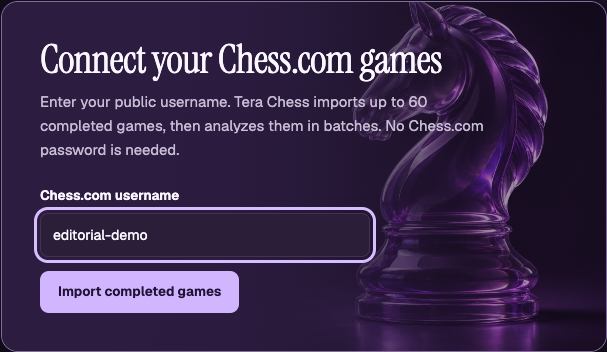
The first sync starts with the newest eligible records from the public archive. It currently checks up to 60 completed standard games across the three newest archive months it can see. A newer game may still be making its way into the public feed. If you want to start your review right away, find a game that finished earlier and confirm it is visible in Game History. Pick a standard rapid, blitz or bullet game, or a completed standard Daily game. A Daily game in progress becomes eligible after it finishes and appears in the feed.
Import happens in the background. Game library can show a row before Stockfish has finished looking through it. If you want to check a specific move, you can open that game as soon as you see it. Use Sync games for newly finished games after the first import and Import older games if the game you want is past the recent batch. Find a game that hasn’t appeared after import
2. Find one game and check what’s ready
In Game library, leave All time controls selected first. Look for the opponent, the finish date, and the result. Then use the time-control filter if you need fewer rows. Check all three details if you played the same opponent more than once. Review opens the game you chose, with the original moves and a link back to the source record.
- Queued
- The moves are already saved. Open Review and step through them. Select Analyze this game if you want to run Stockfish on this game after the current job finishes.
- Screened
- Stockfish has looked through the game and checked candidate mistakes. A screened game can already contribute a practice position. The example below came from a screened game.
- Deep
- The game was analysed with a larger search budget. You can inspect its move evidence in Review the same way.
Keep three checks separate as you go. A row in Game library tells you Tera Chess has the game. An analysis label tells you Stockfish has screened it or examined it more deeply. A position on Training board tells you the system found and selected something worth replaying. In the walkthrough, one imported game gave us one personal position. That ratio depends on what the engine finds in the games you import. A tightly played draw can be an excellent game to review even when it produces no practice position.
Start with a move where you made a decision you can explain. An obvious blunder is fine, but a routine-looking retreat or capture can make a better first exercise because it exposes a choice you are likely to face again. If you can remember the move without looking at the engine, pause just before it and write down one expected reply. A single sentence gives you something concrete to compare with the checked line.
We tested the walkthrough against an isolated copy of Tera Chess in hosted mode. The archive response contained one original demonstration game with a completed result. Stockfish did the screening and graded the practice moves in the real product. The test names are for the screenshots and PGN. Enter your own public Chess.com username to import your library. Download the demonstration PGN
3. Review the move before you practise it
In the demonstration, White had castled kingside. The moves 7.hxg4 hxg4 exchanged White’s h-pawn for Black’s bishop. Black’s former h-pawn now stood on g4 and attacked the white knight on f3. It also left the h-file open above White’s king. White had to make a choice on move eight.
White played 8.Nh2, retreating the knight from the pawn attack. Replay it and then play the actual reply, 8…Qh4. Black’s queen comes from d8 to h4 and looks directly toward the knight on h2. Black’s rook on h8 supports the queen along the open file. White’s king is one diagonal step away from h2, and a queen on that square would give check. The retreat saved the knight from the pawn for one move while making it a target in front of the king.
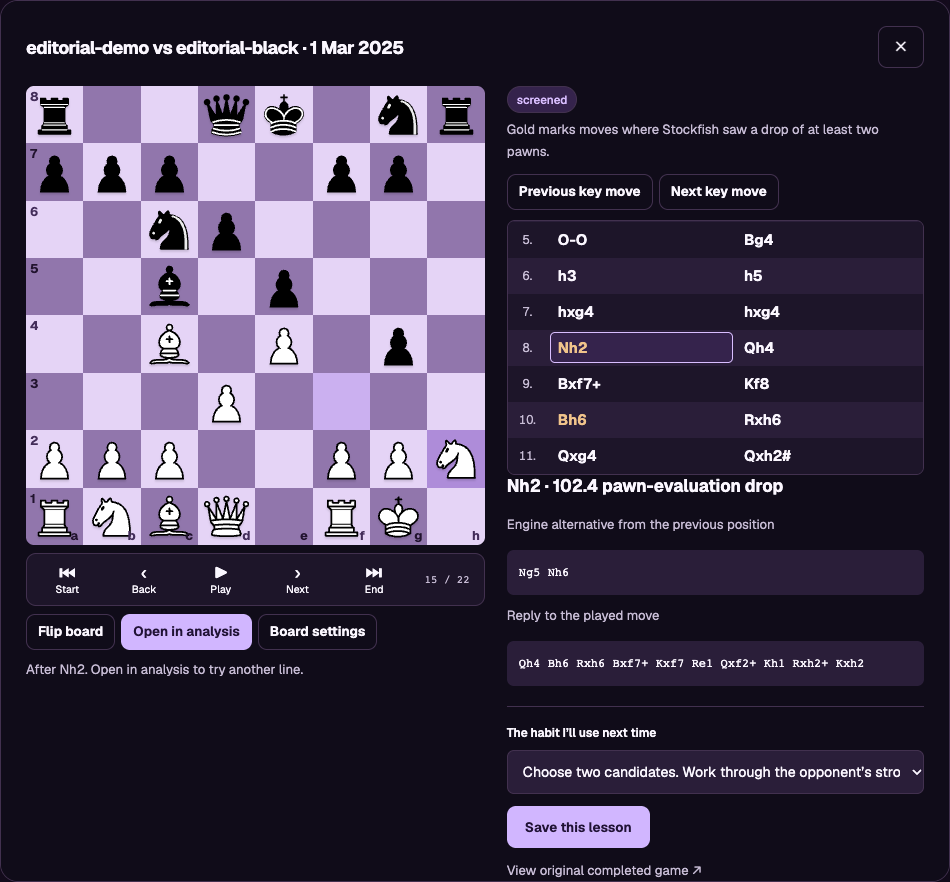
For your own game, select the move you played and compare the two lines in the panel. Engine alternative from the previous position starts before your move. Reply to the played move starts after it. They answer different questions. Use Back before comparing your idea with the alternative. If you want to move pieces and see a variation, choose Open in analysis from the board and work from the position you selected.
When you replay your own move, check where the engine line begins before comparing it with the game. Suppose you saw an opponent’s capture but mentally ended the line after your recapture. Play the next reply too. It might open a file or leave a piece undefended. In this example, the dangerous move came right away, but the checkmate took several more moves. Separating the first threat from the eventual result gives you a habit you can use at the board. The screenshot shows a large evaluation drop because the engine had found a forced mate. Read it as a warning to inspect the line. The mate estimate is expressed on the engine’s numerical scale.
Black won the demonstration game with 11…Qxh2# after a few more moves. That finish makes the danger visible. Working backward shows an earlier decision you can replay, while the knight was still on f3 and the queen was on d8. If you want a reminder for your next game, use the takeaway selector in the review and click Save this lesson. The saved game decision appears in Progress & XP.
4. Play the first position from your games
Open Training board → Start my lesson. Tera Chess chooses an available position for your training. In a larger library the chosen game may differ from the one you just opened in Review. The exercise initially says Personal training. When you finish, From your game vs and the opponent’s name identify the source. When a position starts before one of your moves, you play your own side.
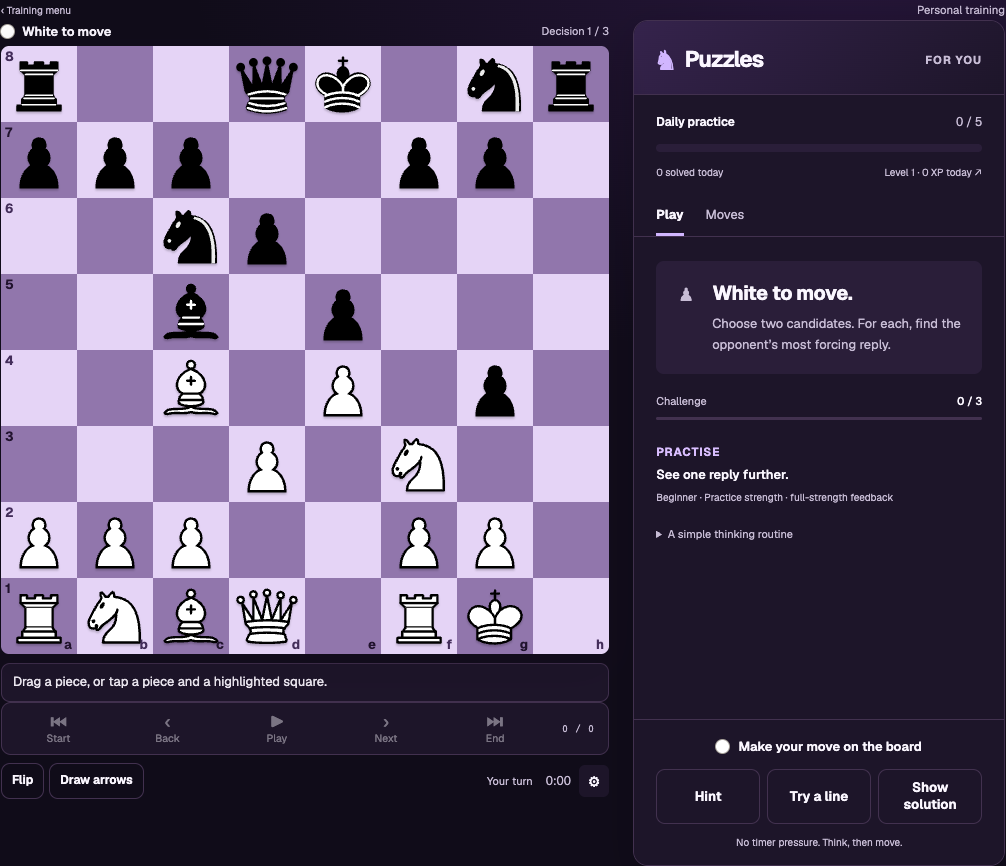
White to move on move eight. Compare the retreat to h2 with a move that creates a threat of your own. Which piece already attacks f7? What changes if the attacked knight joins it? You can reconstruct the board by opening the demonstration PGN in Analysis and stopping at 7…hxg4. You can also load just this position from its FEN.
Copy the FEN for the starting position
r2qk1nr/ppp2pp1/2np4/2b1p3/2B1P1p1/3P1N2/PPP2PP1/RNBQ1RK1 w kq - 0 8See the checked move and why it changes Black’s reply
8.Ng5 takes the knight out of the g4-pawn’s attack and joins the bishop on c4 in attacking f7. The queen’s path from d8 to h4 runs through e7, f6 and g5. With a white knight on g5, the queen can no longer go straight to h4. It can take on g5, but then 8…Qxg5 9.Bxg5 gives up the queen for a knight because White’s bishop on c1 covers g5. One checked reply is 8…Nh6, putting a knight where it defends f7. Now White has made Black respond to a threat while keeping the queen off h4.
Keep the narrow lesson from the position. Before you choose a retreat, ask which checks, captures, or direct threats the opponent gets on the next turn. Then look for a move that removes your piece from danger and asks the opponent a question. In this position the knight can attack f7 while leaving the open h-file free of a knight on h2.
In the app, select a piece and its destination or drag the piece. After your move, look at Stockfish’s reply and finish the prompt you are given. Use Hint if you get stuck. You can also select Try a line to move both sides through a candidate. Rehearsal and hints are saved as assisted practice. On an unassisted attempt, choose a move before looking at the explanation.
Look at the move feedback before starting another exercise. If you picked a different candidate, check which reply the engine used and whether the concern was a piece, a checkmate threat, or something farther down the line. The board can accept a sound move that differs from the one shown in game review. If you could see the knight attack but missed the queen entry, write that down as the reason for a second look.
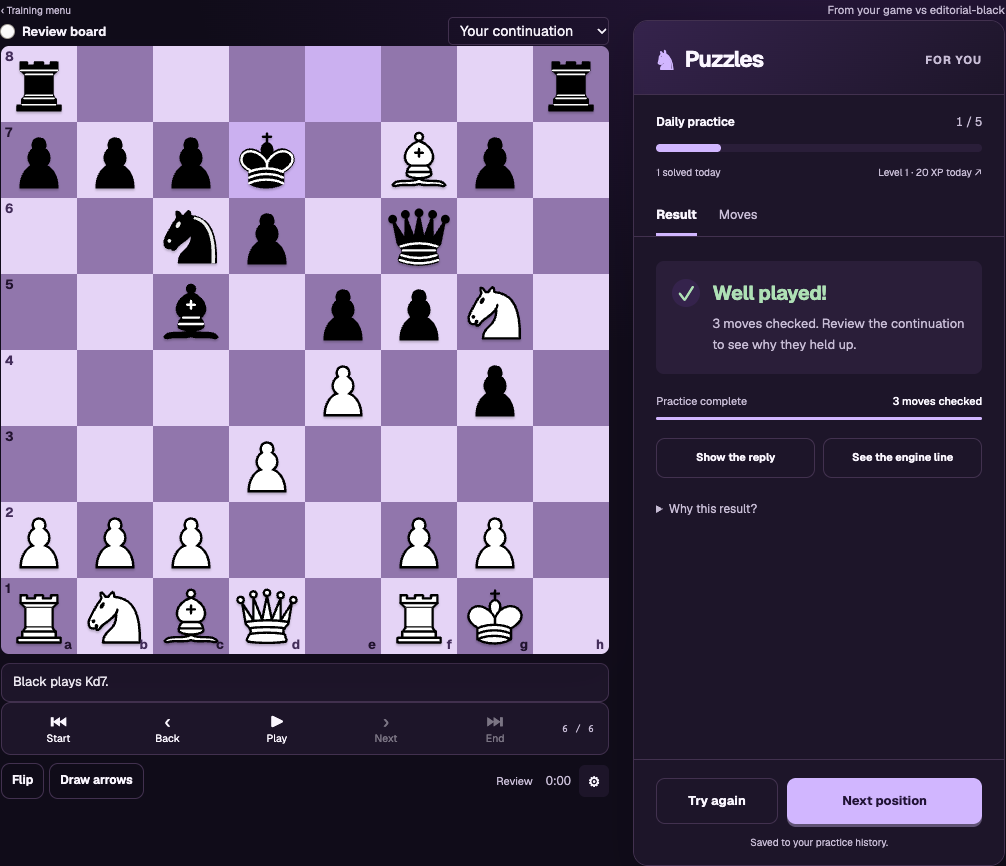
Completion creates a practice entry in Progress & XP. Our test started with 8.Ng5. The practice opponent replied 8…f5, a different legal reply from the one listed in game review. We continued 9.Bxg8 Qf6 10.Bf7+ Kd7. Tera Chess checked all three of White’s moves and recorded the first attempt without in-app hints. If you retry immediately after seeing the line, use that repetition to remember the idea. To see whether you can use it in play, try a fresh position later or check for similar decisions in several subsequent games. Try a mixed decision test
If Training board still offers generic practice, check the analysis status of the games you just brought in. Once screened or deep, a game can still yield zero training positions. Analyse more completed games, or practise a public example while you wait. Work through a public playable example from a completed game
Choose the right tool for your next game
- Tera Chess username import
- Choose this when you want a collection of completed games and personal practice that keeps a source reference and records your attempts. Sync again after the next game appears in the public archive.
- Chess.com Game Review
- Open a game you have just finished and use its Game Review to inspect highlights, classifications and suggested moves on Chess.com. Self Analysis lets you explore variations when you already have the game open. Chess.com’s Game Review guide · Chess.com’s analysis guide
- TeachMeChess
- Fetch recent games by Chess.com or Lichess username and pick one to open in its coach review. Its import page also accepts pasted PGN. TeachMeChess’s import page
- Single-game PGN
- Use a saved PGN when your aim is to work on one file or share a replay. Tera Chess’s Analysis board can load a completed standard game in Position & PGN. Lichess’s public import creates a public replay and points players to Study for private use. Download a Chess.com PGN · Lichess’s import page
A manual PGN replay stays in the analysis workspace. The library and personal practice use the completed games brought in by username. If you already have a collection of annotated files, keep the originals so you can open the comments when you need them. Use the archive import when you want Tera Chess to keep finding decisions in your newer games.
For your first session, set a finish line. Find one game, replay the turn you remember, save one takeaway, and play one personal position if one is available. In the demo, the habit to bring to the next game is “Before I retreat a piece, check where the opponent’s queen can enter.” That gives the next review a question you can answer from the board.
A first-session note you can copy
- Game and move
- Demo rapid game, before White’s eighth move.
- Played
- 8.Nh2.
- Reply worth checking
- 8…Qh4, with the rook supporting the queen down the h-file.
- Candidate
- 8.Ng5, attacking f7 and blocking the queen’s path to h4 with a defended knight.
- Next-game cue
- When a pawn attacks my piece, trace the queen’s open path before I choose a square.
For your own note, write the opponent and date, the move you played, the first reply that changes your view of the position, one checked candidate, and one cue. Include whether you saw the answer before you played the training board. Keep the game link so that you can return to the decision without hunting for it again.